Selecting & moving
A page is a tree: cards hold text and photos, groups hold shapes. Selection walks that tree, and the same handful of gestures does it on every device — with a keyboard and a pointer where you have them.
One tap, then another
- The first tap selects the element on the page under your finger — the whole card or group. That is on purpose: most of the time you want to move the card, not the label on it.
- Tap again on something inside and the selection goes straight to it, however deep it sits. On the Mac, and on an iPad with a pointer, a dashed outline under the pointer shows what the next click selects.
- Double-tap climbs to the parent of what is under your finger, a triple tap to its grandparent.
- Double-tap a text to edit it at once, wherever the selection was; a drawing to draw in it, a chart to open its data. A selected text also edits on the next tap — or with Return on the Mac — and an empty Magic AI container offers Sketch on its left half and Describe on its right.
- Tap empty space to deselect — or Esc on the Mac, the ✕ button on iPhone. While you are editing a text, Esc ends the editing first.
Selecting several
Dragging a box straight away needs a pointer — a mouse or a trackpad, on the Mac or on an iPad. With a finger, a drag pans the page, so you long-press first and then drag. The box catches the elements on the page it touches; touching is enough.
| Mac | Click and drag on empty space to draw the box. ⌘-click adds or removes one element at a time. ⌘A selects everything in view — or, with an element of a group selected, all of its siblings. |
| iPad | Long-press empty space, then drag. With a keyboard, ⌘-tap and ⌘A work like on the Mac; with a trackpad, so does click-and-drag. |
| iPhone | Long-press empty space, then drag. The bottom bar counts what is selected; tap it to let go of them all. |
Moving
- Drag a selected element to move it. On the Mac — and on an iPad with a trackpad — you can skip the selecting: drag anything, and the element on the page under the pointer moves.
- Arrow keys nudge by 1 pt, ⇧ arrows by 10 pt. The alignment guides light up while you nudge.
- Everything snaps to the edges, centres, equal spacing and sizes of what is around it; elements placed straight on the page also snap to its edges and centre. Hold ⌘ to move without snapping; turn off Settings › Snapping & guides to never snap. Rotated elements don't snap.
- Hold ⇧ while dragging to keep the move on 45° steps — straight across, straight up or diagonal.
- Hold ⌥ as you start dragging and a copy stays where you started.
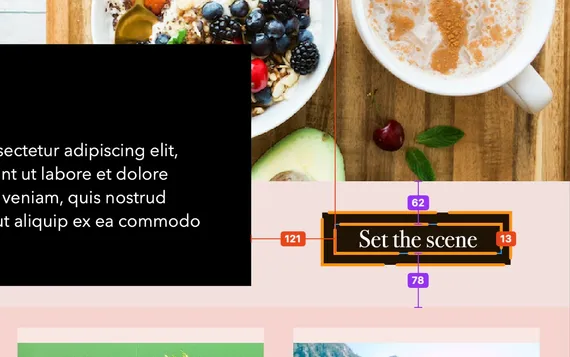
- Measure: with one element selected, hold ⌥ and point at another — the distances between them appear. That needs a pointer: the Mac, or an iPad with a trackpad or mouse.
Resizing and rotating
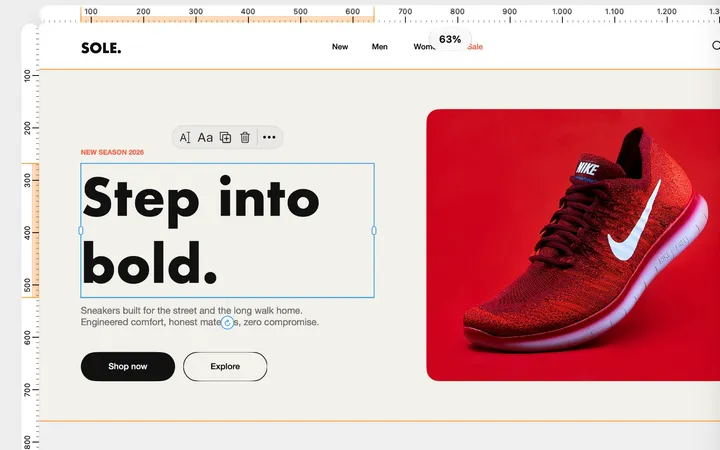
- Edges and corners. Drag an edge handle to resize on one axis, a corner to resize both. A text has only its two side handles: its height follows the text.
- Proportions. Corners keep the proportions when Aspect Ratio is on in the inspector — or while you hold ⌘.
- From the centre. Hold ⌥ to resize around the centre instead of the opposite edge.
- Rotate. Drag the knob under the selection — it clicks into 30°, 45° and 90° on its way round — or hold ⇧ and drag a corner. The exact angle is in Position, in the inspector.
- Fit in Container, under Arrange in the menu, makes an element fill its parent exactly.
Into and out of containers
Groups — and the cards built from them — freeforms and Magic AI containers hold other elements, and what is inside moves with them. You put things in and take them out by holding still.
- In: drag an element over a container and hold still for a moment. Its outline draws itself closed, and when you let go the element is inside.
- Out: drag something out of its parent, hold still, and on release it lands on the page itself.
- Keep moving while it charges and nothing happens — the pause is the signal, so you can pass over containers freely. Changed your mind? Stay still for another second after the outline closes and it lets go.
- From Elements, on the Mac and iPad, a preview of the part follows the drag; hold still over a container to drop it inside, and Esc cancels the drag. On iPhone, a part dropped on the selected container lands inside it.
More actions: the menu
Every selection has a menu with everything you can do to it. Right-click on the Mac and on an iPad with a trackpad; on touch, long-press and keep holding until it opens. The ⋯ in the small toolbar opens it too.
- Cut, Copy, Paste and Delete — and Copy Style / Paste Style, which carry the look of one element to another.
- Group and Ungroup — Unframe on a device frame.
- Arrange: to the front or the back, Stack and Unstack, Fit in Container — and with several selected, Align and Tidy Up.
- Edit: flip and rotate for photos, convert to freeform or path, point editing, rasterize, and the AI actions — Remove Background, Convert to Vector, Extract Text, and Correct, Rephrase, Elaborate or Summarize a text. With several selected, it merges paths, drawings or texts into one.
- Save Component keeps the selection for later, and Export exports it alone. On iPhone, Position opens the pins.
- On empty space the menu is short: Paste, when you have copied something, and Select all.
Lock, hide, and the small toolbar
- ⌘L — or the padlock in the small toolbar or at the top of Layers — locks an element: it stays selectable, but it will not move or resize until you unlock it.
- The circle at the top of Layers switches the selected element's opacity off and on, so you can hide something without deleting it.
- A small toolbar floats by the selection with the everyday actions, depending on what is selected: edit, text format, lock, duplicate, delete, add and remove points, and ⋯ for the full menu. Duplicate and Lock live here and on the keyboard (⌘D, ⌘L), not in the selection menu. Toolbar — under Grid in Design with nothing selected, on the page-settings page on iPhone — sets it to Off, Auto or Always.