AI
There is no chat in Pixara. AI lives inside one element — the Magic AI container — and in a handful of actions on images and text. The container fills a box you drew with real, editable Pixara elements, and then gets out of the way.
The Magic AI container
- Drop a Magic AI container from Essentials, at the top of Elements › Basic, and size it like the card or panel you want.
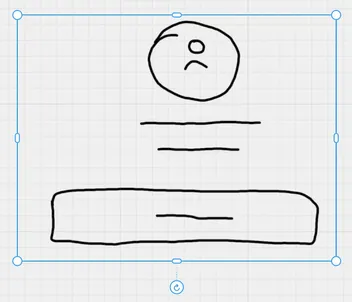
- Describe what goes inside — "a pricing card with three tiers", "a boarding pass to Lisbon" — or sketch it. An empty container shows Sketch on its left half and Describe on its right; the ✦ and scribble buttons above a selected container do the same.
- Tap Generate. A few seconds later the container holds regular Pixara elements: text, shapes, groups, icons. Edit them like anything else; ⌘Z takes the whole generation back in one step.
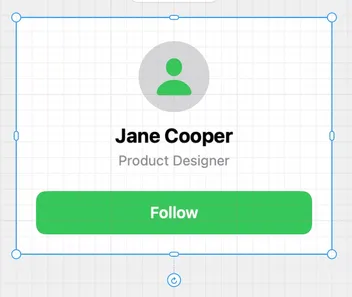
Ask again and the container is edited, not replaced — the button now reads Refine: "make the title bigger", "add one more row", "use a darker accent" work on what is already there. Edit Magic AI Container, in its menu, opens the prompt again.
Sketch instead of typing
Draw inside the container: boxes for cards, lines for text, a circle for an avatar. It is an ordinary drawing, so Apple Pencil works, and so does a finger while Finger drawing is on. Close the sketch with ✕ and the prompt opens on Generate from sketch — add a few words about the content, or none at all. The sketch is notation, not artwork: Generate replaces it with the real thing.
What the model sees
- Your prompt, the container's size and the page's tint — the tint is the accent it designs with. If the container already holds a sketch or content, it also gets a picture of it.
- Nothing else on the page, and nothing from your other pages or documents.
- It lays out, it doesn't paint: icons in the result are SF Symbols. For a photo or an illustration, use Generate with AI in Media.
AI images
Media › Generate with AI paints a picture from a few words; the + next to the prompt adds a reference photo from Photos or Files. Tap Create and the image lands in your Library, ready to use. Each image costs one credit — the first five are free, and packs of 10, 25, 50 and 100 are in the store. An attempt that fails doesn't spend one.
AI on images and text
These sit in the menu of a selected element, under Edit; Remove Background and Extract Text are in the image's inspector too.
| Action | What it does |
|---|---|
| Remove Background | Cuts the subject out of a photo, on the device. |
| Convert to Vector | Traces a picture or an SF Symbol into editable freeforms, on the device — see Freeform & vectors. |
| Extract Text | Reads the text in a photo into a new text element, on the device. |
| Correct · Rephrase · Elaborate · Summarize Text | Rewrites a selected text element — with Apple's on-device model where it is available, otherwise in the cloud. The new text takes the style of the first letter; ⌘Z brings the original back. |
Limits, honestly
Adding a Magic AI container is free; generating is part of Pro. Without it, Generate opens the Pro offer and keeps your prompt for later. On top of that there is a daily AI allowance on each device, for everyone: when it runs out, a message tells you it resets at midnight. The text actions are not part of Pro and don't count against the allowance; AI images use credits instead.